
Monday, June 3, 2013

SharePoint - Back to basics - Evaluation of SharePoint

Back to the day that I have started learning SharePoint, It was Thursday in January month and SharePoint 2010 came out recently at that time. Few of my colleagues are started working on SharePoint 2010 and few more working on SharePoint 2007.
MOSS 2007 was launched with greater things. There were lot of changes between SharePoint 2003 and SharePoint 2007. We have to check that we are going to inherit from System.Web.UI.Webcontrols.Webpart or SP WebPart class.  Here are few differences between ASP.NET web part and SharePoint webparts.
  •       We don’t have cross page connections
  •       Data caching allows caching in content DB
  •       Client side connection and connections between two webparts.

In SharePoint 2007, we need to use CKS tools to create WSP package or else we need to create our own package. Here are the simple steps,
  •       Create a dwp file for the web part
  •       Create feature.xml file and manifest.xml file
  •      Create a DDF to cab and use it to create a cabinet file using makecab command.

For Moss 2007, project server and and info path form services also released.
SharePoint 2010 was come out as the next release to the SharePoint 2007 with few add-ins (Office web apps, FAST search server.) Web parts can be created also using silverlight packages and we can use them in SharePoint for more beautiful UI. We can use Silverlight in SP 2007, but we have to write our own code to it by using web services or using Object model. REST came in to the picture with Client side Object model and Silverlight Object model in SharePoint 2010. This helped to get the SharePoint object and use them on client machine.  Sand boxed solutions are helped to deploy the solutions at site collection level instead of farm. All these are created that In previous versions all code was running under server side, so to escape the burden from the server. So that the impact on web front end machine performance was impacted.
In SharePoint 2013, we can see that CSOM has expanded with extra functionality and APPS was working more of replacement of Sand boxed solutions. Here we have more feasibility to use client side things like JavaScript, JQuery, Silverlight, and HTML.
These are few basics on the SharePoint evolution and it is helpful to know the things as a SharePoint developer. 

Wednesday, May 29, 2013

SharePoint 2013 CAML Query Designer - It's not only CAML query builder... More than that...

Karine Bosch and Andy van Steenbergen created new caml query designer. We can download it from biwug site by clicking on downloads and select caml designer.
SharePoint 2013 caml designer provides many more features including all features of SharePoint 2010 caml query builder with nice look and feel. Here is some screen shots with explanation.
Download the caml builder into your Dev server, select the .exe file and run as administrator.


CAML designer 2013 contains language interoperability. By default it is set to English. On the top left we can see two options CAML and Site Data Query to get queries. In the Top of the right side we can see Connection link and settings link with Refresh, Twitter follow us, Help.


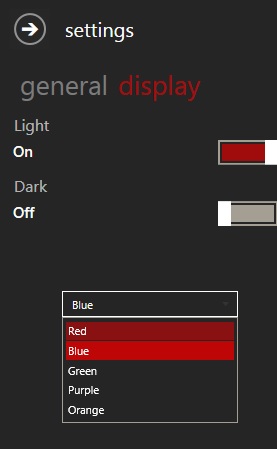
By clicking on the settings link, we can see two tabs to set general and display settings as shown in the images below.


In the general settings, it allows us to clear the history and language settings. In display settings we have the option to set the background colors and lighting view.
By clicking on the connection link, we can see connection types (Server OM, Client OM, Web Services) and SharePoint version (SharePoint 2013, SharePoint 2010, Office 365) and the authentication credentials (Current user or allows us to enter the credentials) as shown in the image below.


For SharePoint 2010, we can see only Client OM, Web services options. (I think caml designer is detecting the current installed SharePoint version. So that it is not showing Server OM for SharePoint 2010).


For SharePoint 2013, we can see Server OM, Client OM, web services options as shown below.


For Office 365, we have Client OM and Web services options.


Here I have selected SharePoint 2013, Server Om and current User credentials. By clicking on the connect button, it will connects the SharePoint site. While connecting SharePoint site shows the message “Trying to connect….” As shown in the image below.

After connecting the site, it shows all the lists and libraries on the site as shows in the image.


Select a list for caml query; we have drag and options for view fields as shown in the image below.


Drag and drop the fields to see in the results.

In the “Order By” tab select the field to show in the order.


In the “Where” tab, select the options or logic by dragging the fields and setting the logic.


“Query Options” tab allows us to select the options.


We can results finally in “Test” tab for all these customization.


On the bottom window we can see CAML Query for customized logic. We can also see  Server OM code, .Net Client Object model code, Rest Client Object Model code as well as Web services. As shown in the images below.


In the Rest Services we have two options, JSON, ATOM as per the required result type.

You can see more explanation on CAML Query designer here


Tuesday, May 28, 2013

Set and Get property bag values in SharePoint 2013 apps using CSOM

Property bags are a place to store metadata or properties of SharePoint 2013 site. A Property bag is a key value pair, that can be used in Farm, Web Application, Site and Web level.
Following example shows how to write and read the property bag values of host web.
Following code shows how to write value in property bag. Here I am writing value for “Directory Tagged” key.

function tag() {
    var hostweburl = decodeURIComponent(getQueryStringParameter("SPHostUrl"));
    var appweburl = decodeURIComponent(getQueryStringParameter("SPAppWebUrl"));
    var clientContext = new SP.ClientContext.get_current();
    var hostContext = new SP.AppContextSite(clientContext, hostweburl);
    var web = hostContext.get_web();
    clientContext.load(web);
    var webProperties = web.get_allProperties();
    clientContext.load(webProperties);
    webProperties.set_item("DirectoryTagged", true);
    web.update();
    clientContext.executeQueryAsync(TaggedSuccess, TaggedFail);
}

function TaggedSuccess(sender, args) {
    $("#results").text("Tagged your site.");
}

function TaggedFail(sender, args) {
    $("#results").text("Tagging failed");
}

In the following code Iam reading the value of “Directory Tagged” key value and the value is ‘True’ Iam disabling the button

function checkIfTagged() {
    var hostweburl = decodeURIComponent(getQueryStringParameter("SPHostUrl"));
    var appweburl = decodeURIComponent(getQueryStringParameter("SPAppWebUrl"));
    var clientContext = new SP.ClientContext.get_current();
    var hostContext = new SP.AppContextSite(clientContext, hostweburl);   
    var web = hostContext.get_web();
    clientContext.load(web);

    //get all web properties
    webProperties = web.get_allProperties();
    clientContext.load(webProperties);   
    clientContext.executeQueryAsync(getWebPropertiesSucceeded, getWebPropertiesFailed);
}

function getWebPropertiesSucceeded() {

    //Get all property fields
    var allProps = webProperties.get_fieldValues();
    var customProp = "";

    //Check property exists or not
    if (webProperties.get_fieldValues().DirectoryTagged != undefined) {
        var customProp = webProperties.get_fieldValues().DirectoryTagged;
    }   

    if (customProp == "TRUE")
    {
        //property value is true                       
        $("#results").text("Site tag is true.");
        $("#btnTag").attr("disabled", "disabled");
        return;
    }
    //property value is false
    $("#btnTag").bind("click", tag);
    $("#messageText").text("Site is tag is false.");
}

function getWebPropertiesFailed(args, sender) {
//log error message
} 

Monday, May 27, 2013

Add current logged-in user to a new list item by using SharePoint 2013 Client Object Model

While working in SharePoint event registration with SharePoint-hosted app by using Client Side Object Model. In that code I had a requirement to add the current logged in user to list item. Here is the code to get the current logged-in user and add a new list item to the new list item.

var currentContext;
var web;
var user;
$(document).ready(init());

function init() {
//get current context
currentContext = SP.ClientContext.get_current();

//get current web details
web = currentContext.get_web();

getCurrentUser();
addNewItem();
}

function getCurrentUser() {
user = web.get_currentUser();
context.load(user);
context.executeQueryAsync(onGetUserNameSuccess, onGetUserNameFailed);
}

function onGetUserNameSuccess() {
//custom code with current logged in user
}

function onGetUserNameFailed(sender, args) {
//log the error
}

function addNewItem()
{
// get the list for your item
var list = context.get_web().get_lists().getByTitle("ListName");

// create a ListItemCreationInformation object
var itemCreateInfo = new SP.ListItemCreationInformation();

// add this item to the list
var newItem = list.addItem(itemCreateInfo);

// Create a UserValue and set the LookupId to the current user
var userValue = new SP.FieldUserValue();
userValue.LookupId = user.get_id();

// Create a LookupValue and set the lookupId to the id of an event
var eventValue = new SP.FieldLookupValue();
eventValue.set_lookupId($("#Lookup Coloumn").val()); 

newItem.set_item('Title', user); //internal names
newItem.set_item('EventLookup', eventValue);
newItem.update();

context.load(newItem);
context.executeQueryAsync(
Function.createDelegate(this, this.onAddNewItemSucceeded),
Function.createDelegate(this, this.onAddNewItemFailed)
);
}

function onAddNewItemSucceeded() {
//custom code when Item Added Successfully
}
function onAddNewItemFailed(sender, args) {
//log the error

}

Thursday, May 23, 2013

Error exporting the list named “Announcements” at the URL: Lists/Announcements while saving site as template in SharePoint

One of my client having a requirement that to create sub sites programmatically using SharePoint site template location in solution gallery. We need to create a site with some lists and libraries and save it as site template by navigating to site settings and clicking on save site as template link. By doing this I got an error saying that,
Error exporting the list named “Announcements” at the URL: Lists/Announcements

Tried to rename the list, but got the same error with another list. By Checking the logs I have found the error message below,
SPSolutionExporter: System.NullReferenceException: Object reference not set to an instance of an object.

After some troubleshooting on the issue, I have found that few of custom content types not set to defaults in site and site collection level.

To fix this issue run the following power shell commands to disable and enable the content type feature.

Disable-SPFeature –Identity ctypes –url “Site Collection URL”

Enable-SPFeature –Identity ctypes –url “Site Collection URL”

After running this power shell commands there is no change in content types. Now we can save the site template with out any issues.