
Monday, February 16, 2026

Enterprise Architecture and Reasoning in Practice: How Claude and GPT Coexist Inside Copilot

In this article i am explaining my understanfing on how Claude and GPT work together inside Microsoft Copilot, it helps to look at the system the way an enterprise architect would not as an AI chat experience, but as a layered intelligence platform designed for scale, governance, and long-term evolution.

In a real organization, Copilot sits at the very top of the stack, embedded directly into daily tools like Teams, Word, Excel, Outlook, and custom-built agents created in Copilot Studio. From the employee’s point of view, there is only one assistant. They never choose a model explicitly, and they never interact with Claude or GPT directly. Everything feels unified and seamless.

Behind that simplicity is a powerful orchestration layer. When a user asks Copilot a question, Copilot first interprets intent and determines what enterprise context is required. It may pull information from Microsoft Graph, SharePoint, OneDrive, emails, meetings, calendars, or connected business systems. This grounding step is critical, it ensures that responses are rooted in organizational reality rather than generic internet knowledge.

Before any request reaches an AI model, Copilot enforces identity, access control, and compliance policies. Microsoft Entra ID permissions are applied, sensitivity labels are respected, and tenant governance rules determine what data can be used. This is a key distinction between enterprise AI and consumer AI: the model never gets unrestricted access to data. It only sees what Copilot explicitly allows.

Once the request is grounded and secured, Copilot performs prompt shaping. This step refines the input, removes unnecessary details, and structures the prompt so that the chosen model can reason effectively. Only after this orchestration does Copilot select a reasoning engine — either a GPT model or Claude.

At this point, Claude and GPT behave as interchangeable but specialized reasoning components. They do not connect to Microsoft systems directly. They do not retain tenant memory. They simply process the prompt they are given and return an answer. Copilot then validates the response, applies responsible AI checks, formats it for the user’s context, and presents it inside the Microsoft experience.

This design allows Microsoft to offer model flexibility without sacrificing enterprise control. Intelligence becomes modular, while governance remains centralized.

How Claude and GPT Differ Inside the Same Architecture

Although Claude and GPT operate within the same Copilot-controlled pipeline, their reasoning styles are noticeably different and that difference is exactly why Microsoft chose to support both.

GPT models tend to feel fast, adaptive, and conversational. Inside Copilot, GPT excels at everyday productivity tasks: drafting emails, summarizing meetings, generating explanations, and helping users iterate quickly. Its strength lies in fluency and versatility. When users want speed, creativity, or conversational flow, GPT often feels like the natural fit.

Claude, by contrast, brings a more deliberate and structured reasoning approach. When Copilot routes a task to Claude, the output often feels calmer, more analytical, and more cautious. Claude is particularly strong at handling long documents, maintaining logical consistency across large contexts, and synthesizing complex or policy-heavy material. This makes it well suited for compliance analysis, HR policies, legal documents, architectural reasoning, and research-style tasks.

Another subtle but important difference lies in how ambiguity is handled. GPT often attempts to provide a helpful answer even when the input is loosely defined, sometimes filling gaps creatively. Claude is more inclined to acknowledge uncertainty, state assumptions explicitly, and avoid overconfident conclusions. In regulated enterprise environments, this behavior is often desirable rather than limiting.

What matters most is that Copilot shields users from these complexities. Employees simply ask questions and get answers. Architects and administrators, however, gain the ability to intentionally route workloads to the model whose reasoning style best matches the task. Copilot becomes the intelligence broker, deciding not just how to answer, but which kind of thinking is appropriate.


Why This Architecture Changes Enterprise AI Strategy

The coexistence of Claude and GPT inside Copilot represents a shift away from model-centric thinking. Enterprises no longer need to standardize on a single AI model and hope it performs well across every scenario. Instead, they can design AI solutions where different models are used intentionally, transparently, and safely.

Copilot becomes the stable foundation — the AI operating layer — while models evolve underneath it. As new models emerge or existing ones improve, organizations can adopt them without redesigning their entire AI strategy. Governance, security, compliance, and user experience remain consistent, even as intelligence becomes more powerful.

This is the same architectural principle that made cloud platforms successful, now applied to AI.

Claude and GPT inside Copilot are not competitors. They are complementary forms of intelligence, coordinated by a platform designed for enterprise realities. This approach signals a future where AI is no longer about choosing the “best” model, but about building systems that can think differently when needed  without losing control.

Thursday, August 23, 2018

SharePoint 2013 Site collection Launch page – Access Denied error


Recently I got an issue while login to one of the host-named web application. All of sudden when I try to open the site, it shows me access denied error. I have removed and added myself as Site collection Administrator and still same error. I have added myself in Super reader and Super User in Web application policy. But still same issue.

After checking for some more time, I found that I am able to access all the pages and libraries by entering the URL directly (Eg: /SitesPages/Home.aspx , /Pages/Default.aspx) . I have verified if this is issue with DNS entry, but I am able to navigate to the site but it is throwing access denied error. I have verified Authentication providers, if there is any issue with Claims authentication.  But nothing worked.

After some time I found this post on the issue. We got the issue due to Authentication settings got corrupted. After enabling and disabling the Anonymous access for the web application my issue got resolved.

Here are the steps to fix the issue,

Open SharePoint 2013 Central Administration site, click on Manage web applications.


Select the web application that has the issue and click on Authentication Providers from the ribbon bar.


Open the authentication provider zone we are using, We can see it as default.


Check the Enable anonymous access option and then Save the Authentication settings. It can take some time to save the settings, so after click Save just need to wait for the Authentication Setting window to close.


After the Authentication settings window closes we should be able to get to the home page without any Access Denied errors.

Now we don't want to leave anonymous access enabled so once again open the authentication provider zone and un-check Enable anonymous access and then Save the Authentication settings. We should now still be able to access the root site of web application and the issue has been fixed.

Thursday, July 12, 2018

SharePoint 2010 – Unable to edit cell in Datasheet view – “This cell is read only”


When I try to edit the excel in SharePoint 2010 list in Datasheet view, I see an error saying that “The Selected Cells are Read-only” as shown the image below.


  • I have verified user Permissions to the list. User Having Full control permissions to the list
  • Checked-out by any one (It is not document library)
  • Any Attachments having read-only – NO
  • Is current column is default system column? (Like Created, Modified Etc..) – NO
After checking all these details, I found Microsoft Support article about the fix. We have Content Approval enabled in the list and that is blocking DataSheet View edit. By Turning Off the Content Approval, We can fix the error.

Here are the steps to turn off content approvals,
  • In the List select Settings
  • Select List Settings
  • Select Versioning Settings
  • In the Content Approval section select No for "Require content approval for submitted items"

Now we can able to edit the items in DataSheet view.
Hope this helps.

SharePoint 2013 error – Unexpected response from server, The status code of response is '500'. The status text of response is 'System.ServiceModel.ServiceActivationException'.


One of my client using SharePoint standalone machine for 400 people for their internal applications. Everything working as expected but one day all of sudden got an error message saying that,

Unexpected response from server, The status code of response is '500'. The status text of response is 'System.ServiceModel.ServiceActivationException'.


This error cause due to high memory usage in the server. Verify task manager and check what service taking more time. In my case Search service taking much time. We can fix the issue using options below,

Option 1: Search Service Node Runner.exe

Reduce the Search Service Performance Level with

Set-SPEnterpriseSearchService -PerformanceLevel Reduced

As NoderRunner.exe is the process working on search service, we can limit the memory for NodeRunner.exe. But this is not recommended. We can change the configuration located in “C:\Program Files\Microsoft Office Servers\15.0\Search\Runtime\1.0\noderunner.exe.config”

Option 2:  Restart servers

For Temporary solution like users wants to make SharePoint up and Running, Restart the server, so that you can see the error temporarily (You get some time to increase resources or restrict Services to specific value)

Hope this helps to resolve the issue.

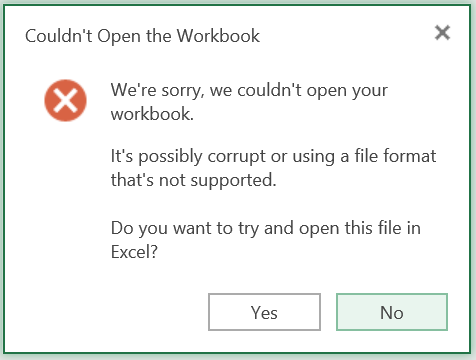
Excel Online error - we are sorry we couldn't open your workbook it is possibly corrupt or using a file format is not supported


I am seeing an error when I try to open Excel file in SharePoint Office Excel with error message “Excel Online error - we are sorry we couldn't open your workbook it is possibly corrupt or using a file format is not supported” as shown the image below.


I have verified excel file is corrupt and external data is loading from anywhere. But File looks good and there is no external data loading to the site.
After checking some posts, I found that it is due to protected mode enabled in the excel file. To fix the error, we have follow the steps below.
Download the document and open it in excel
Open the document in excel and uncheck all the options under Protected View. Go to file->options->Trust Center->Trust center settings->click protect view and uncheck all options under protected view. Then upload the document to the library to check if the same issue will occur.


By default, it will open excel file in excel online when storing the excel file in SharePoint online. Save and upload the excel in the Library. Try to open the file in Excel web app.